FASC - ASSIGNING FACULTY TO SECTIONS OF COURSES
Faculty are assigned to courses on the FASC (Faculty Section
Assignment) screen.
At the main menu in the Student System type FASC in the box labeled Mnemonic and click on Go.
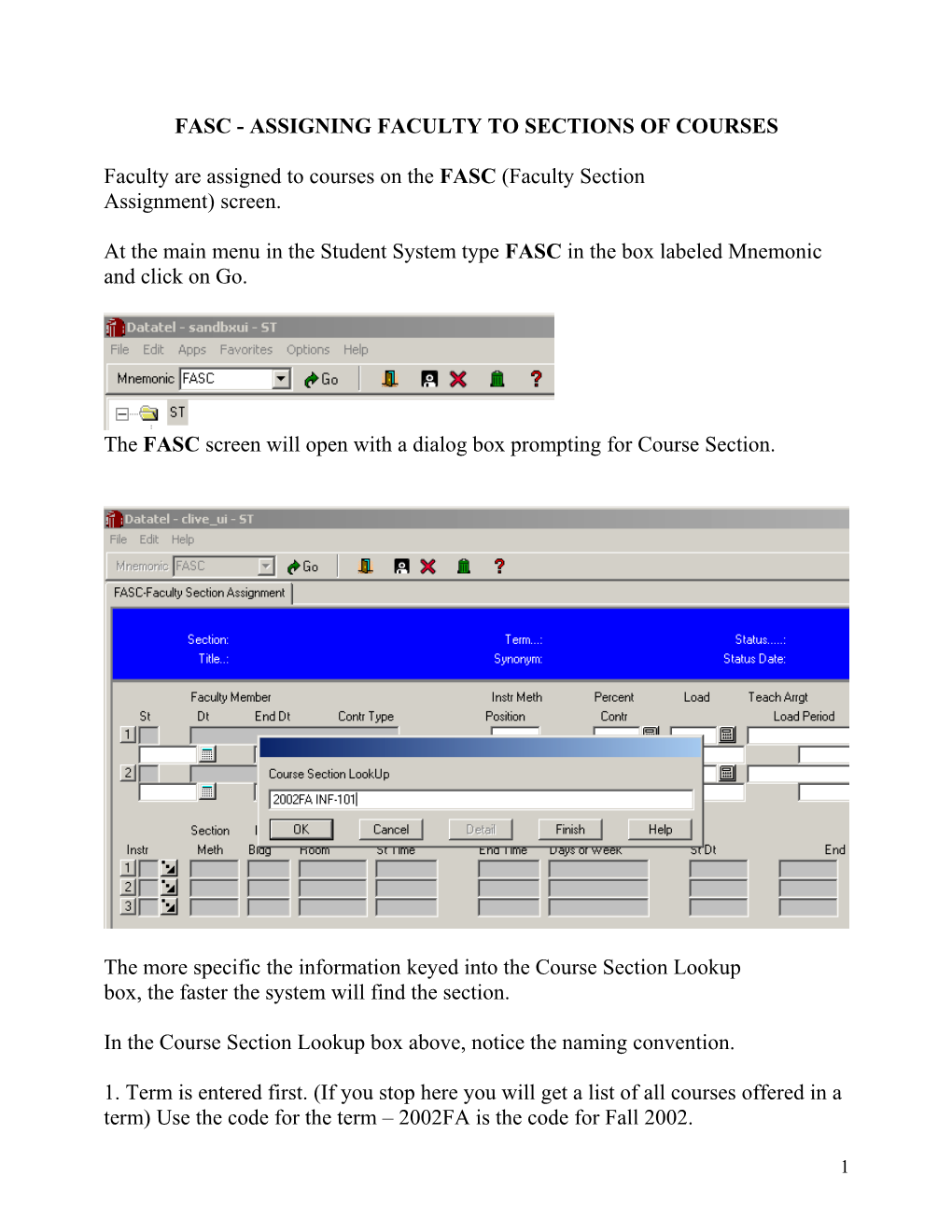
The FASC screen will open with a dialog box prompting for Course Section.
The more specific the information keyed into the Course Section Lookup
box, the faster the system will find the section.
In the Course Section Lookup box above, notice the naming convention.
1. Term is entered first. (If you stop here you will get a list of all courses offered in a term) Use the code for the term – 2002FA is the code for Fall 2002.
Term codes for Summer I, Summer II, and Fall are as follows:
2002FA = Fall 2002
2003SP = Spring 2003
2003S1 = Summer 2003 Session I
2003S2 = Summer 2003 Session II
2003SU = Summer 12 week Session
Be sure to select the right term when assigning sections!
Once a term has been entered in a Colleague session in this dialog box, FASC will remember it so term does not have to be entered as part of every section lookup until a change is necessary.
2. Next enter the subject code followed by the course number (If you stop here you will get a list of all sections for the course and term.)
3. Finally enter the section number.
Once the section has been retrieved, FASC will appear as below. Notice that the information on the screen now refers to INF 101-001 in term 2002FA.
To key in the faculty name, click in the box next to the number 1 (see screen print above), go to the toolbar and click on Edit → Wide Edit (as below).
The Faculty Lookup Dialog box appears. Key in Q for Qualified, or enter the name, Colleague ID or Social Security Number of the faculty member to be assigned.
If entering a name in the dialog box, Colleague will return a list of all faculty with names matching.
If entering a name of a person Colleague does not recognize as having "faculty status", an alert box will appear:
After assigning an instructor to the section, exit
the screen by clicking on File → Save, clicking on the Save icon
or by hitting the F10 key.
To delete a name from the list, click on the numbered box to the left of the name to be deleted. An alert box will appear, prompting you to "Select the Window operation to perform". Choose DELETE. .
Click on Delete.
Another dialog box appears:
Choose Delete again to confirm.
If not entering another faculty name, click on File→Save to save this change to the section record. Otherwise, proceed to add a new name as above.
1