VoIP Common User Options
Loginto yourCisco Unified CM User Options
Modify your Device Speed Dials
ConfigureCall Forwarding
User Settings (Modifyyour PIN)
Manage your Personal Address Book
Add a Personal Address Book Entry
Remove a Personal Address Book Entry
Login to your Cisco Unified CM User Options
To access your VoIP User Options you may need to contact Telecom (4-7174 or ) and request that your new VoIP device is associated with your OKEY account in the VoIP CallManager.
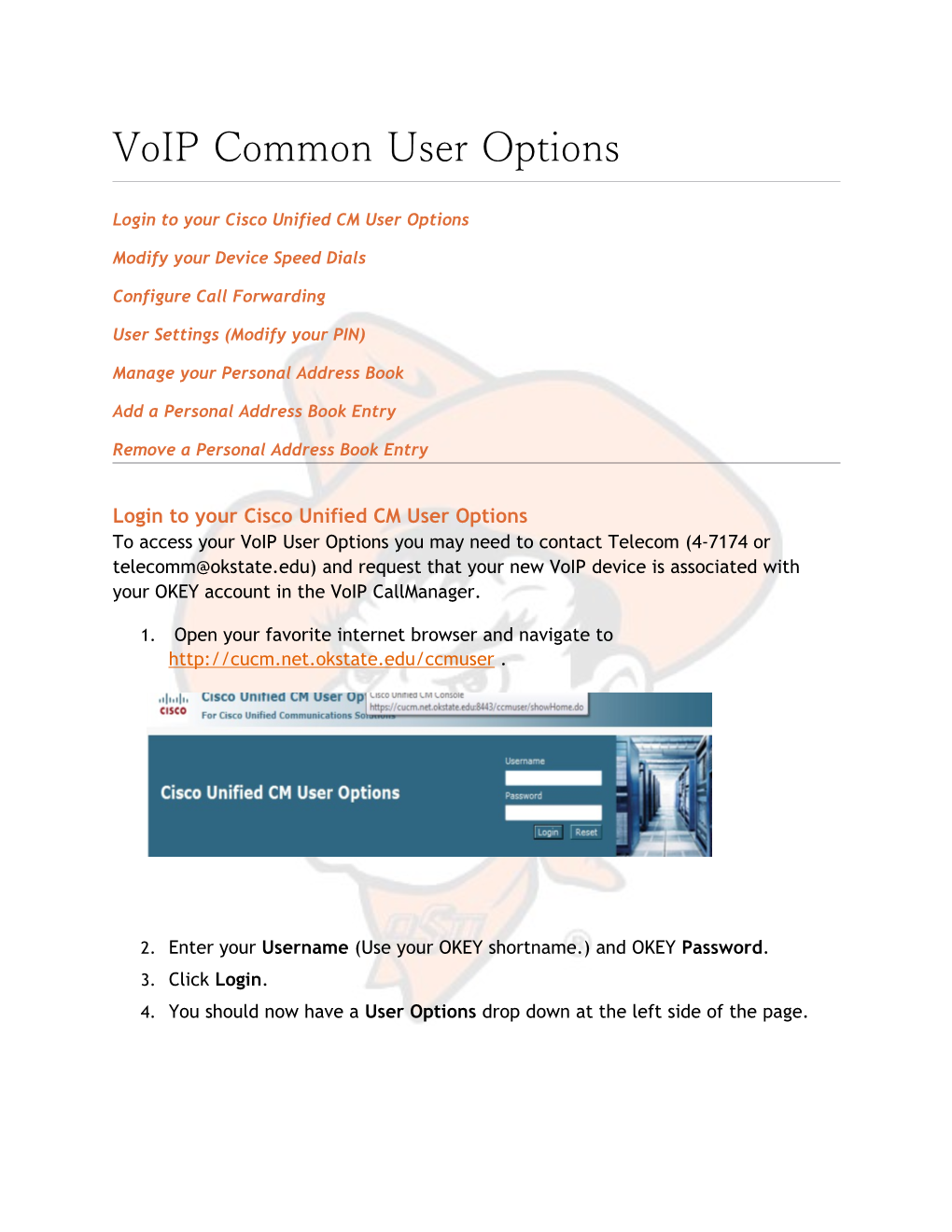
- Open your favorite internet browser and navigate to
- Enter your Username (Use your OKEY shortname.) and OKEY Password.
- Click Login.
- You should now have a User Options drop down at the left side of the page.
Modify your Device Speed Dials
- From the User Options drop down, select Device.
- Verify that the device selected in the Name drop down is the device you would like to modify.
- Click the Speed Dials tab.
- The page will then resemble the screen shot below:
- For each speed dial button enter the Number and both the Label and ASCIILabel for the contact. (The Label and ASCII Label is typically the same.)
(NOTE: Be sure to include (8) before for off-campus numbers.)
- Click Save.
Configure Call Forwarding
- From the User Options drop down, select Device.
- Verify that the device selected in the Name drop down is the device you would like to modify.
- Click the Line Settings tab.
- Modify the Incoming Call Forwarding settings as desired.
Forward All Calls: Be sure to include an (8) for off-campus numbers.
Internal calls are only the calls coming from other VoIP users.
External calls are all other callers.
When there is no coverage means when you phone cannot register with the CallManager. Typically the phone is unplugged or there is a network outage.
Additional Line Settings on this page
Message Waiting Lamp: Light and/or Visual Prompt
Audible Message Waiting Indicator: Stutter Dial Tone On or Off
Ring Settings: If you want your phone to ring or flash even if you’re on the phone.
Line Text Label: This is the text that is displayed next to this line on your device.
User Settings (Modify your PIN)
Some options available with your new VoIP device require a PIN.
- From the User Options drop down, select User Settings.
- Enter the Current PIN, New PIN, and Confirm PIN to modify.
Manage your Personal Address Book
You can view, add, edit and delete entries to your address book. To search your personal address book, do the following:
- From the User Options drop down, select Personal Address Book.
- Use the arrow keys to highlight Personal Address Book.
- To do a ‘blind’ search listing all entries in your address book leave the search field blank and click Find.(If this is the first time accessing your address book you will likely have no results.)
- To add your business contacts refer to the section Add a Personal Address Book Entry.
Add a Personal Address Book Entry
Add or edit entries in your personal address book through the Cisco Unified CM User Options website at . To add a personal address book entry, do the following:
- From the User Options drop down, select Personal Address Book.
- Click the Add New button at the bottom or the top (both options are the same).
- Fill out as many fields as you’d like. The only required is Nick Name.
- When you are done, click the Save button.
- You will see a message that says, “Add successful.”
- To add another entry, click the Add New button.
Remove a Personal Address Book Entry
Remove a personal address book entry through the Cisco Unified CM User Options website at To remove a personal address book entry, do the following:
- From the User Options drop down, select Personal Address Book.
- Click the Find button to see the list of the phone book entries.
- Click the check box next to each entry you want to remove.
- Click the Delete Selected button.
- A message appears warning you that this action cannot be undone. Click the OK button.